
How to set up Zoobly on your Windows computer?
Hello Zoobly parent 👋
We’re excited to help you with setting up Zoobly on your Windows computer. With Zoobly in place, your child’s device time becomes a safe and balanced experience.
1. Before You Begin
A little preparation will make this setup quick and smooth:
- Administrator login: Sign in to the device as an administrator to stay in full control and keep Zoobly secure. Create a Windows standard user account (local account) for each of your children (make sure they are not administrator accounts).
- Supported versions: Zoobly works on Windows 7, 8, 10, and 11. Older versions and Domain/Active Directory setup isn't supported.
- Zoobly Account: Create a Zoobly account from the Parent app or the Zoobly website.
- Antivirus check: Please uninstall Kaspersky, Norton or ESET antivirus, as they may prevent Zoobly from installing correctly.
- Disable default Windows parental controls: Turn these off to avoid conflicts with Zoobly.
2. Install Zoobly for Windows
- Sign in to the Windows computer as the administrator.
-
Download Zoobly for Windows using this link.
(Zoobly is not available in the Microsoft Store and must be downloaded directly.)
- Launch the installer and allow admin access to proceed with installation.
- Read and accept the license agreement, then click Continue once the installation completes.

3. Login & register the device
Now login and connect the device to your Zoobly account.
-
Open the Zoobly app from the desktop icon.

-
Log in using your Zoobly account credentials.

-
Review and accept the Data disclosure agreement.

Let Zoobly complete the device registration process.
💡 If you use Norton, ESET or Kaspersky antivirus, please uninstall it for Zoobly monitor to work seamlessly.
4. Link your child’s Zoobly profile to the Windows user account
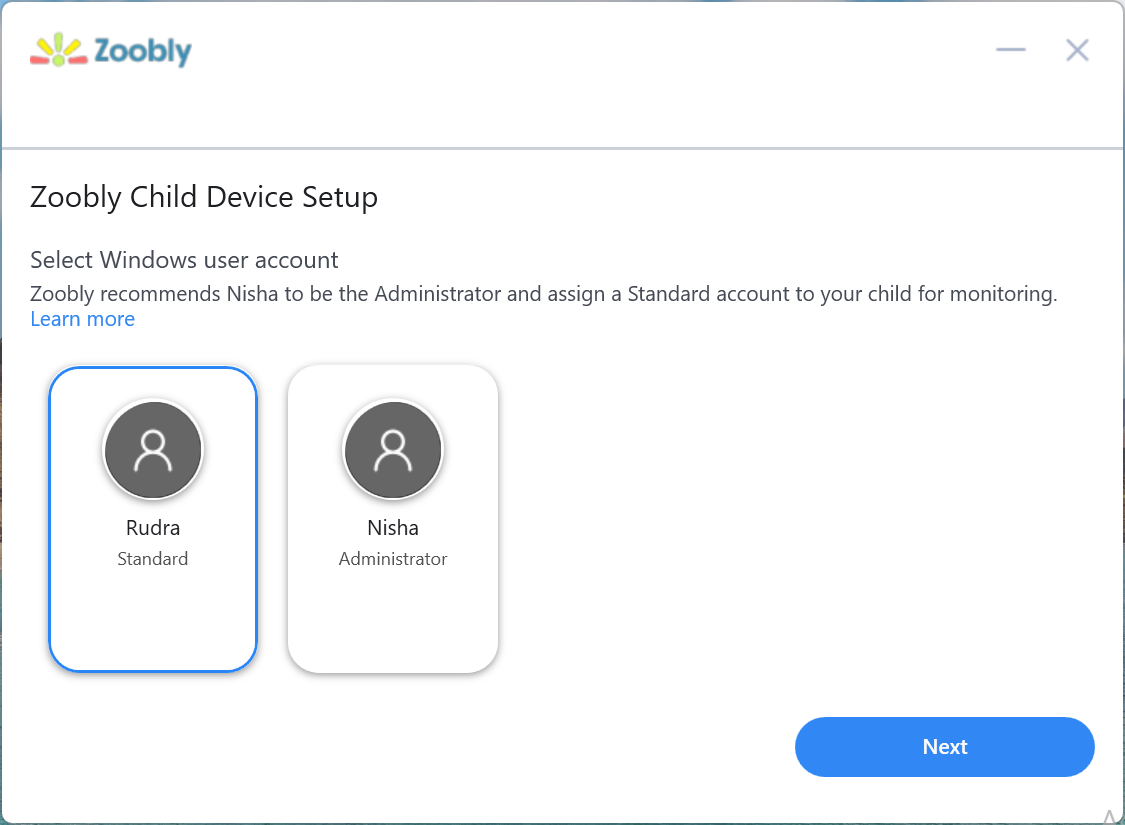
You’re nearly done! Connect your child’s Zoobly profile to the child’s Windows user account to enable content filtering.
-
Select your child’s Windows user account from the list.
-
Connect it to the Zoobly child profile you’ve already created.
(If you haven’t created a profile yet, you can add one here.)
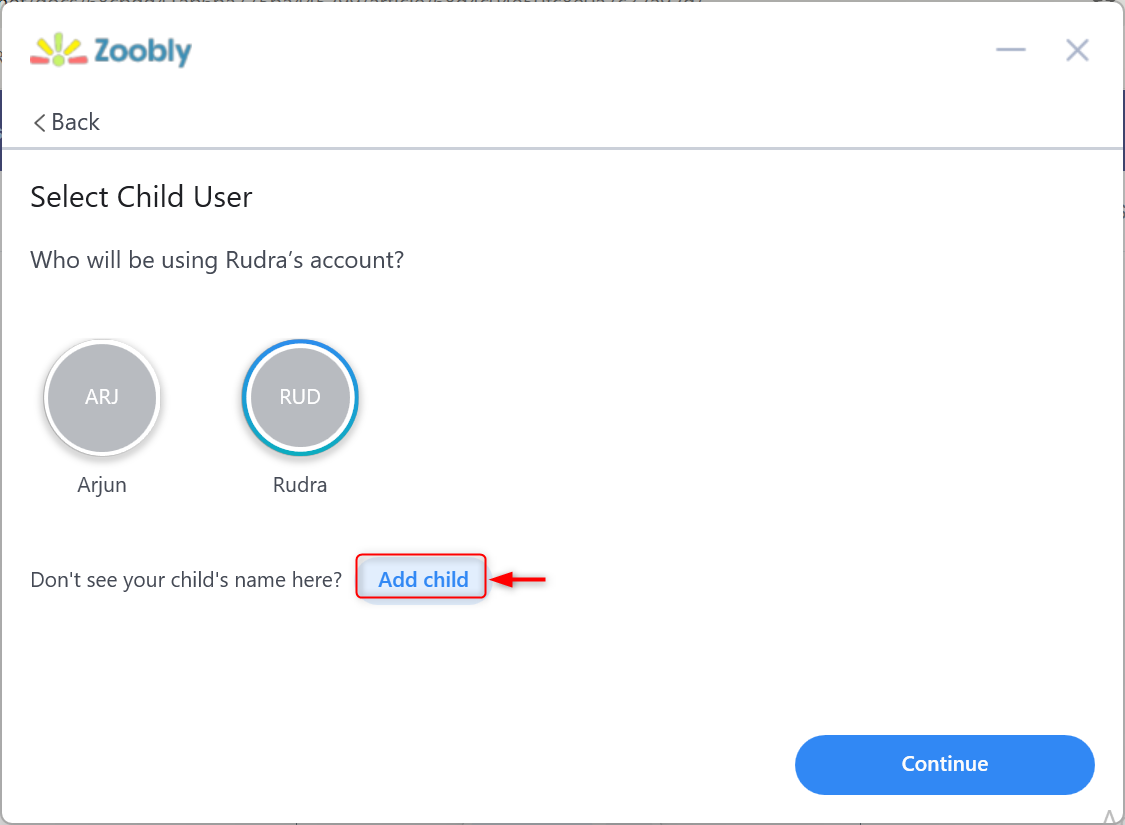
- Do the same for each of your child’s Windows accounts you’d like Zoobly to protect.
5. Complete Setup
When all child accounts are linked, click Complete Setup. 🎉

Your child’s Windows account is now protected with Zoobly!

✨From here on, your child can use their account, while you guide screen time and web activity from the Parent app — safely without hovering.
Post-setup tips:
-
Clear browsing data
Sign in to your child’s Windows account and clear all browser cookies and cache. This helps Zoobly’s content filter to work seamlessly.
-
Access the Zoobly dashboard
Your child can right click on the Zoobly app in the icons (system) tray on their account to access Zoobly child dashboard and view their screentime summary and upcoming schedules.
We hope you were able to set up Zoobly on your child’s device successfully. If you have any trouble, please reach out to the Zoobly Support Team.