
How to block apps and limit time spent on apps?
Hello Zoobly parent 👋
Looking to block apps or set time limits for app categories for your child? You’re in the right place!
Here's how you can do it:
1. Block Apps
Zoobly helps you block apps either by category or by app.
How to setup:
Go to Scheduling > Daily Free Time > Blocked Apps > Edit.

By Category:
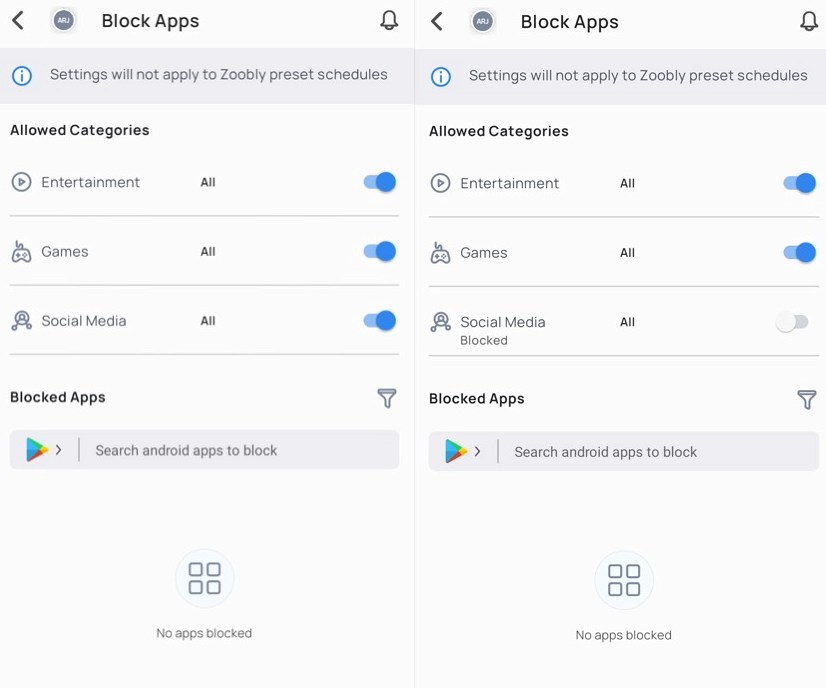
- You can block entire app categories Social Media, Entertainment, or Games with Zoobly.
-
Blocking a category automatically blocks all apps under it; allowing a category restores access to all apps within that group.
By App:
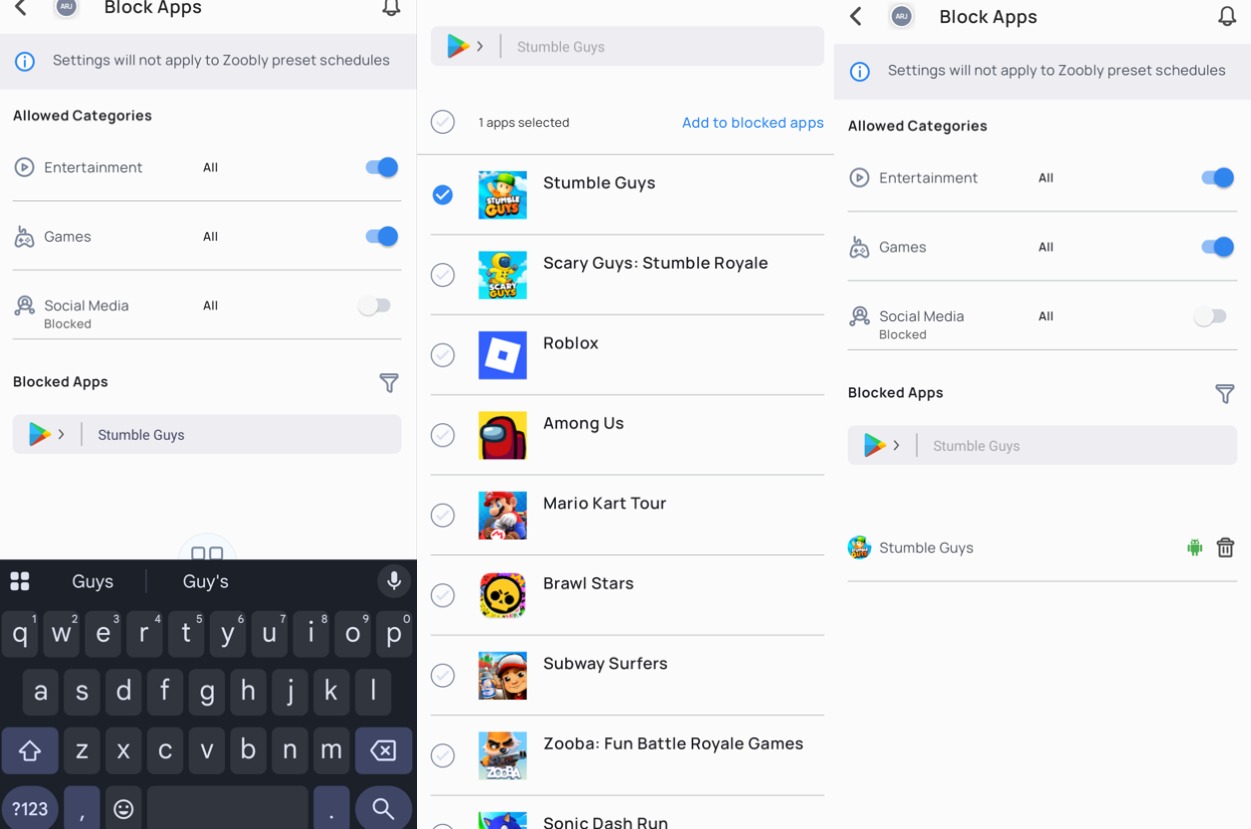
- You can search for a specific app in the Play Store or App Store and add it to the Blocked Apps list.
-
Removing an app from the blocked list restores access to the app for your child.
What happens when apps are blocked:
- iOS devices: The apps will appear greyed out and cannot be opened.
- Android devices: A “Blocked by Zoobly” screen appears. Your child can request access from this screen, and you can approve or reject it from the parent app.
2. Limit Apps
You can set time limits for app categories like Social Media, Games, and Entertainment.
To set up, go to Scheduling > Daily Free Time > App Limits.

- By default, your child has unlimited access to these categories.
- Setting a time limit controls how long your child can use the apps under the category each day.
What happens when the limit is reached:
- iOS devices: Apps that come under specific category will appear greyed out and cannot be opened.
- Android devices: A “Blocked by Zoobly” screen appears.