
Why Should I enable or disable 'Ask to Buy'?
Hello Zoobly parent 👋
If you like using Apple’s Ask to Buy feature, you might’ve noticed it doesn’t work well with Zoobly right now.
Zoobly uses Apple’s Screen Time API, and currently there’s an issue on Apple’s side that interferes with Ask to Buy. Apple has been made is aware of the issue, and a fix is on the way!
In the meantime, here’s a simple workaround to keep things running smoothly.
How to make Ask to Buy work with Zoobly
- Open the Zoobly child app.
- Go to the menu and select “Enable Ask to Buy.”
- Log in using your Zoobly account credentials.
-
From the list of apps, find and select App Store.
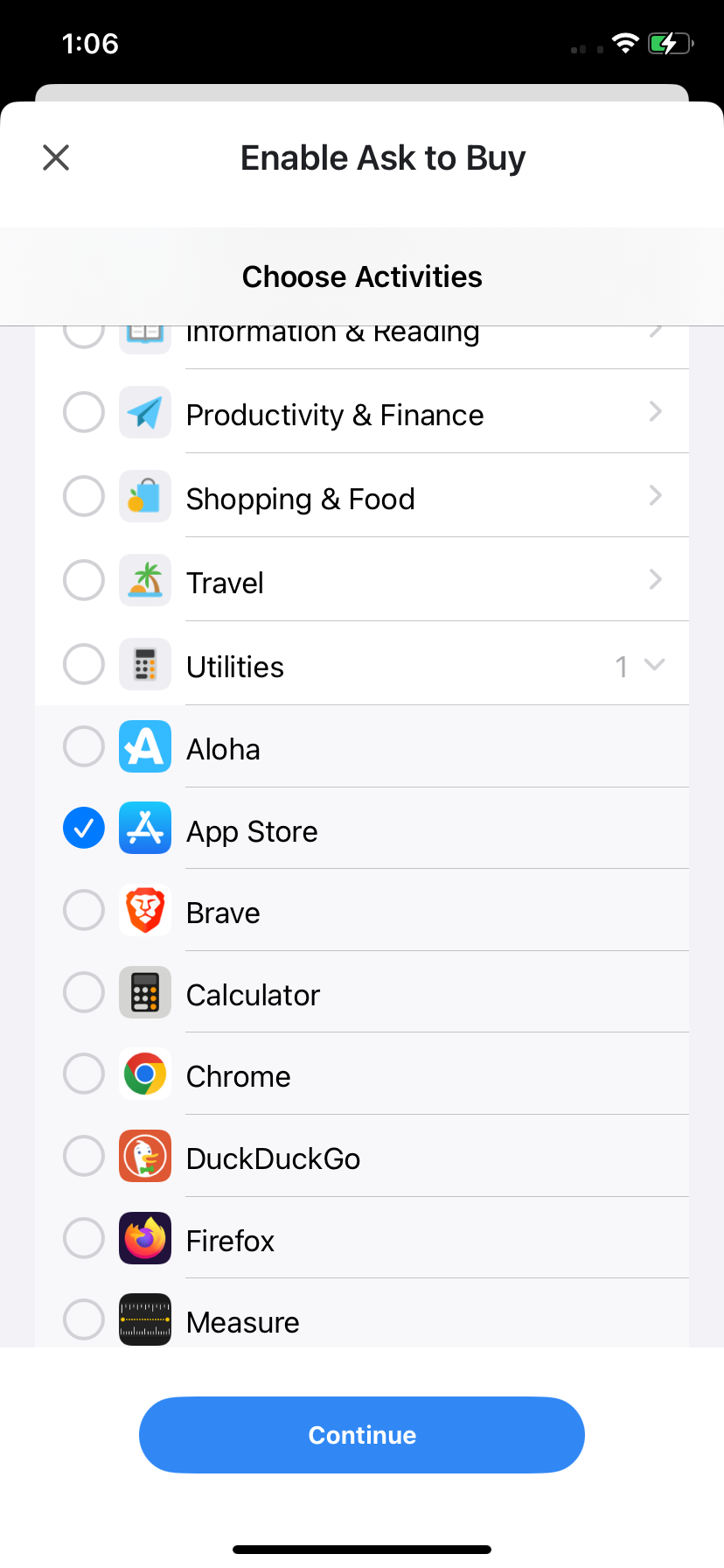
Note: If you had selected the wrong app by accident, just go back to the menu, tap “Disable Ask to Buy,” and repeat the steps above to select the App Store again.
When Ask to Buy is enabled, only the App Store app will stay unlocked, while all other apps on your child’s device will be temporarily locked.
Your child can now enable Ask to Buy in Zoobly child app, then go to App store to request your approval whenever they want to install a new app.
Once your child installs the approved app, they can open Zoobly again and select “Disable Ask to Buy” to lock the App Store and unlock everything else.
We know it’s a bit of extra effort, and we truly appreciate your patience while Apple works on a permanent fix.